
Proof approval guide
How to check a proof before you approve it
What a proof can and cannot tell you, exactly what to look for, and what happens the moment you say yes.
Before anything goes on press we send you a proof. By then we have already checked your files and sent you our remarks, and you have fixed what needed fixing — so the proof is the last look at the publication itself, and the last moment at which a mistake costs an email rather than a reprint. In our experience it is also the step people give the least time to.
This guide explains what you are actually looking at, how to check it so that problems surface, and how to approve it so that nothing is ambiguous. Give it an hour. On a 3,000-copy run that hour is the cheapest insurance you will ever buy.
1. What a proof is, and what it is for
First our remarks, then the proof
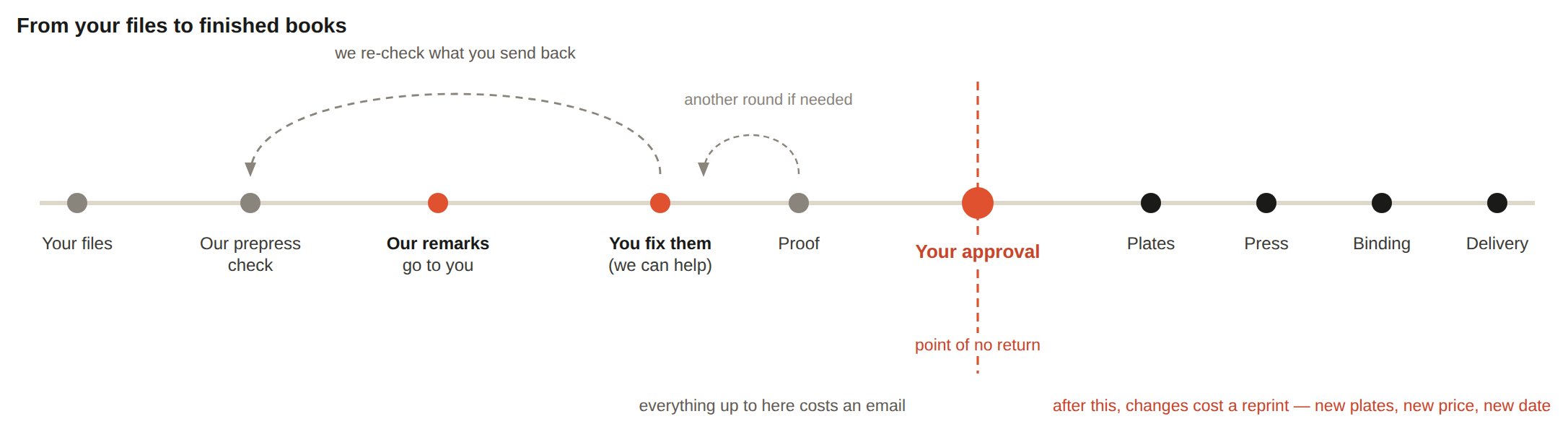
The proof is not the first thing you hear from us. When your files arrive they go through our prepress check — preflight, colour, resolution, bleed, page count, whether the cover fits the spine. Whatever we find there comes back to you as remarks, not as a proof.
Most of those points have to be fixed on your side, in the original design file: a missing bleed, an RGB image, text sitting on the trim, a page count that does not work with the binding. Some we can fix for you — tell us and we will quote it, or, if it is small, simply do it. Either way, nothing moves forward until they are dealt with, and when you send corrected files we re-run the same check on them.
Only once the file is clean do we produce the proof. That matters for how you read it: by the time a proof reaches you, the technical problems have already been settled. The proof is not there to tell you whether the file works. It is there to tell you whether the publication is right — the right text, the right pictures, in the right order, on the right pages.
What you are looking at
The proof comes out of prepress and imposition — the arrangement of your pages onto the large sheets the press actually prints. It is your files as we will print them, not as you last saw them on your own screen.
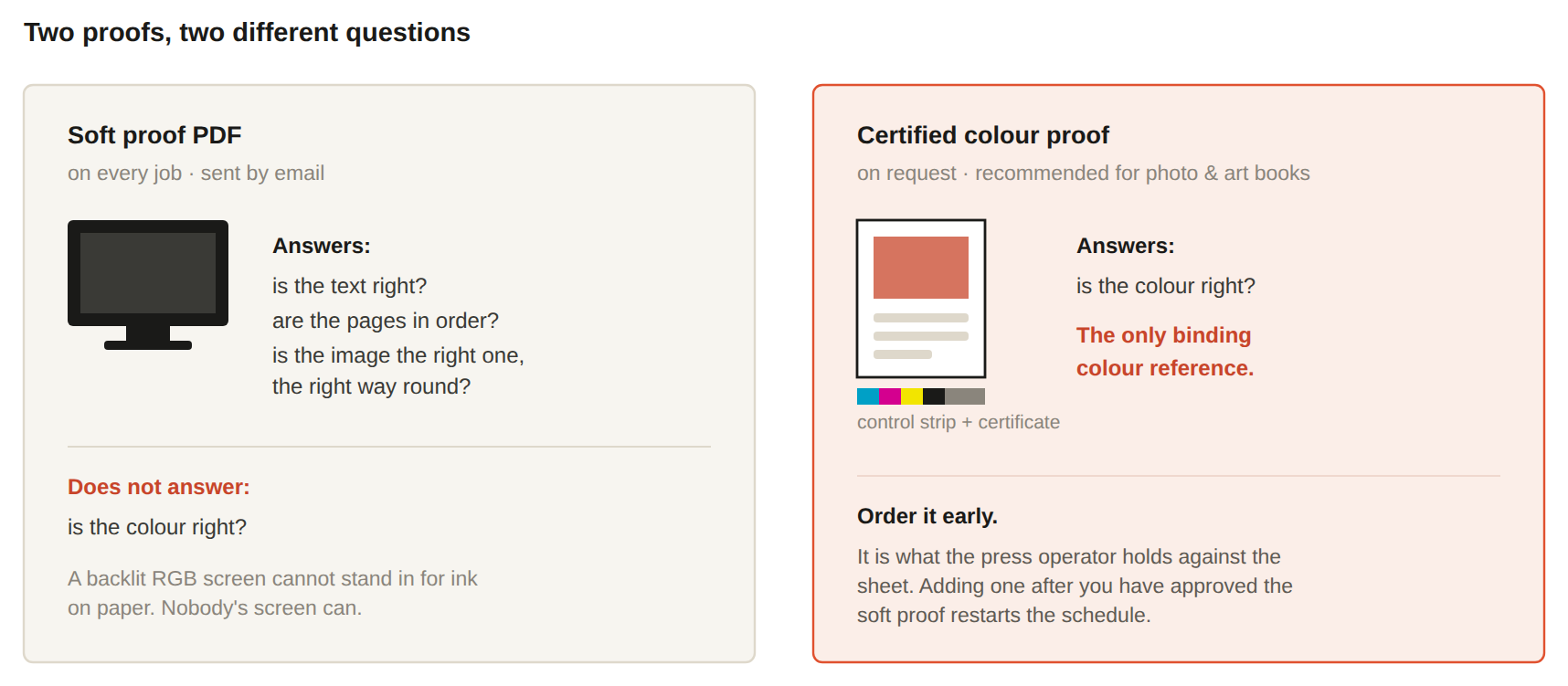
Soft proof PDF — on every job
A PDF sent by email showing your pages after our prepress. It is the reference for everything except colour: content, page order, position, bleed, margins, how black is built, how images sit on the page. Most of what can go wrong is visible here.
Certified colour proof — on request
A physical print produced on a calibrated proofing device to the ISO 12647-7 standard, carrying a control strip and a certificate, and viewed under standardised D50 lighting. It is the only binding colour reference in the whole process — the thing the press operator holds up against the printed sheet. We recommend one for photo books, art books and any catalogue where the colour of the product is what sells it.
| Can it tell you… | Soft proof PDF | Certified colour proof |
|---|---|---|
| Text, spelling, page order, page count | Yes | Yes |
| Position, bleed, margins, gutter | Yes | Yes |
| Imposition and pagination | Yes | Partly |
| Whether an image is the right one, the right way round | Yes | Yes |
| Colour, as a binding reference | No | Yes |
| Paper feel, bulk, finish, binding | No | Only the proofing stock |
The whole sequence — files, our remarks, your fixes, proof, approval, press — is drawn in section 8. It is worth a look before you read the rest.
2. Before you open the file
Five minutes of setup decides whether your check is worth anything.
- Open it in Adobe Acrobat Reader — the free one is enough. Not in a browser tab, not in Apple Preview, not in the Windows or macOS built-in viewer. Those renderers handle overprint, spot colours and transparency incorrectly: they show you things that will not print and hide things that will.
- Turn on overprint preview. Acrobat → Preferences → Page Display → Use Overprint Preview: Always. This single setting catches the most expensive class of proof error there is — white or pale text accidentally set to overprint, which looks perfect in a naive viewer and disappears completely on paper.
- Look at it at 100% (Actual Size) at least once, then at 200–400% for small type, captions, barcodes and anything with a number in it.
- Use a computer, not a phone or tablet. Small screens hide low resolution, and their aggressive colour processing makes everything look better than it is.
- Turn off the night-shift / warm-light mode on your screen. It is designed to change colour, which is the opposite of what you want here.
- Block out an uninterrupted hour. A proof skimmed between two meetings is where “we should have caught that” comes from.
3. Why a screen is not a colour approval
Your monitor emits light and builds colour by adding red, green and blue. Paper reflects light and builds colour by subtracting it with cyan, magenta, yellow and black ink. They do not cover the same range, and no amount of care makes them agree completely.
On top of that, almost nothing in your viewing conditions is controlled: monitors are rarely calibrated, brightness and white point differ between machines, the light in your room changes through the day, and the paper the job prints on has its own colour and absorbency.
What that means in practice
- Use the soft proof to judge whether the right image is in the right place, whether a photograph is the wrong way round, whether a background is broadly the intended colour, whether something has gone obviously grey or muddy.
- Do not use it to judge whether a skin tone is right, whether your brand blue matches, or whether two images on facing pages will look consistent. Those questions cannot be answered on a screen, by anyone.
When colour is the point of the book
For photo books, art books and product catalogues, ask us for a certified colour proof. It gives you something physical to look at and gives the press operator something physical to match — without one there is no reference, and “it looked different on my screen” is not a claim anyone can act on.
If you already have a printed reference — a previous edition, a fabric swatch, a product sample, a Pantone chip — send it to us. Colour matching only means something against a physical object.
4. Check it in five passes, not one
Do not try to catch everything at once; you will catch almost nothing. Run the file five times, each time looking for one class of problem only. It is faster and it works far better.
Pass 1 — Structure
- Total page count matches what you ordered and what you were quoted
- Pages in the right order; nothing duplicated, nothing missing
- Blank pages exactly where they are supposed to be
- Chapters and sections start on the correct side — a recto is a right-hand page
- Page numbers run correctly and agree with the contents page and the index
- No page rotated, mirrored or upside down
Pass 2 — Text
- This is final, proofread text. A proof is not the place to start editing — see section 6 on what counts as a correction and what counts as a new job.
- Names, job titles, dates, prices, ISBN, the barcode number, web and email addresses
- The imprint or colophon page: copyright year, edition, legal notices
- Running heads and folios — the right chapter name on the right page
- Captions actually belong to the pictures they sit under
- Headlines: check hyphenation and line breaks, which move when text is set
Pass 3 — Images
- The right image in the right place
- Nothing flipped or mirrored — check text inside images, faces, hands, buttons on clothing, which side a wedding ring is on
- Nothing pixelated or soft when you zoom to 100%
- Crops: nobody’s head cut off, no important detail lost at the edge
- If an image crosses the gutter, look at what falls into the fold
Pass 4 — The cover
The cover carries more errors per square centimetre than the rest of the book combined, because it is usually the last thing finished.
- Spine text — reads in the right direction, centred, and not touching the folds
- Title, subtitle and author exactly as on the title page — these disagree far more often than you would expect
- Barcode present, correct, with enough clear white space around it
- Blurb, endorsements, price, publisher logo, series information
- Flaps: right content, right order, right way round
- Hardcovers: nothing important sitting in the hinge or disappearing into the 20 mm wrap
Pass 5 — Technical
- Anything meant to touch the edge runs off into the bleed
- Nothing important within 5 mm of the trim
- Text near the gutter will still be readable once the book is bound
- Small text is black only, not built from four inks
- Thin rules and hairlines are still visible
- With overprint preview on: no text has vanished, no unexpected boxes have appeared around transparent objects
5. Things that look wrong but are not
Every proof round produces a few alarmed emails about things that are entirely intentional. Before you write, check this list.
| What you are seeing | Why it is there |
|---|---|
| Crop marks, registration targets and colour bars around the page | We add them at imposition; they sit outside the trim and are cut away |
| The PDF page is bigger than the finished book | The proof includes the 3 mm bleed on every edge |
| Pages in a strange order, several to a sheet, some upside down | An imposed proof shows the printing sheet, not the reading order. Ask us if you are unsure which kind you have |
| Colours differ slightly from your design file | Screen versus CMYK conversion — see section 3 |
| Images look soft until you zoom in | Acrobat renders a low-resolution preview at low zoom |
| Black looks different in different places | Rich black in large areas, 100% K in small text — intentional and correct |
| Thin white lines between adjacent coloured objects | A screen rendering artefact in Acrobat, not something that prints |
6. Sending corrections
There are two separate moments at which things get changed, and it helps to keep them apart.
- Our remarks, before the proof. Technical problems we found in your files. Mostly fixed on your side in the design file; we can take some of them on if you ask. This round happens before a proof exists.
- Your corrections, after the proof. Content problems you found — a typo, the wrong photograph, a caption in the wrong place. That is what the rest of this section is about.
How to send them
- One consolidated list, from one person. Three emails from three people over two days is how corrections get lost — and a lost correction is your correction, not ours.
- For each item give us page number → where on the page → what it should say. “Page 47, caption under the left-hand photo: Warszawa, not Warsawa.” Not “the caption on the photo page is wrong.”
- Acrobat’s comment tools are ideal: Comment → Sticky note or Text box, then send the annotated PDF back. Corrections drawn on a screenshot or described over the phone are how misunderstandings start.
- Do not send a corrected full file unless we ask for one. If you do, tell us exactly which pages changed and why — otherwise the whole job has to be re-checked from scratch, and that costs time you were trying to save.
What is a correction, and what is a new job
Fixing a typo, swapping an image, adjusting a caption — those are corrections and we will make them. Changing the page count, the format, the binding, or restructuring the layout is not a correction: it changes the imposition, the paper calculation and often the price. Ask us before you assume, and we will tell you which side of the line your change falls on.
7. How to approve
Approval is given by email, by the person in your organisation authorised to commit to the print run. Reply to the message that carried the proof, so that the approval and the exact file it refers to stay in one thread.
Copy this sentence and fill it in:
It looks over-formal for a reason. In a printing schedule:
- “Looks good” is not an approval — it is an opinion, and we cannot plate on it.
- “Yes, go ahead” does not say which version. On a job with three proof rounds that ambiguity is dangerous.
- “Approved except for the cover” is not an approval at all — it is a correction round. Say so plainly and we will hold the cover and proceed with the text block, or hold everything, whichever you prefer. Just tell us which.
8. What happens after you approve
- We print what you approved. If an error is in the approved proof, it will be in the finished books. That is not a failure of the process — it is the process working exactly as designed.
- Changes after approval are a new job, not a correction. New plates, new setup, a new price and a new delivery date. Where sheets are already printed, it means reprinting them and paying for the paper twice.
- We check, but we do not proofread. We flag technical problems we spot — missing fonts, bad resolution, a cover that will not fit. We do not verify your text, your prices, your dates, your ISBN, or whether your cover says what you meant it to say. Nobody here knows what it is supposed to say. That check is yours, and only yours.
None of this is us being difficult. It is the entire reason the proof exists — and the reason an hour spent on it is worth more than any other hour in the project.
9. The approval checklist
Tick every line before you send the approval email.
- Opened in Adobe Acrobat, with Overprint Preview set to Always
- Checked on a computer — at 100%, and at 400% for small type and barcodes
- Page count, page order and blank pages all correct
- Chapters start on the correct side; folios agree with the contents page
- Text is final and proofread — this is not the editing stage
- ISBN, barcode, prices, dates, names and addresses all verified
- Every image is the right one, the right way round, and sharp at 100%
- Spine text correct, centred, reading the right way
- Cover title, subtitle and author match the title page exactly
- Nothing important within 5 mm of the trim; bleed present where needed
- Text near the gutter still readable once bound
- A second person has read the text and the cover
- Colour-critical job: certified colour proof requested, seen and approved separately
- Corrections consolidated into one list, from one person, with page references
- Approval sent by email, naming the proof version and date
Not sure what you are looking at?
If something in your proof looks wrong — or you simply cannot tell whether it is a problem — ask before you approve. A question costs nothing and takes a day at most. An approved mistake costs a reprint. Your contact here will go through the file with you.